Agent Schedules
Supervisors can view agent schedules and enter exception for them.
What do you want to do?
Tasks in this Topic Include:
Related Tasks:
- Schedule Change Requests
- Agent Bids
- New Bids
- Schedule Swap Requests
- Agent Exceptions
- My Alerts
- Change Password
Agent Search
To view an agent's schedule:
-
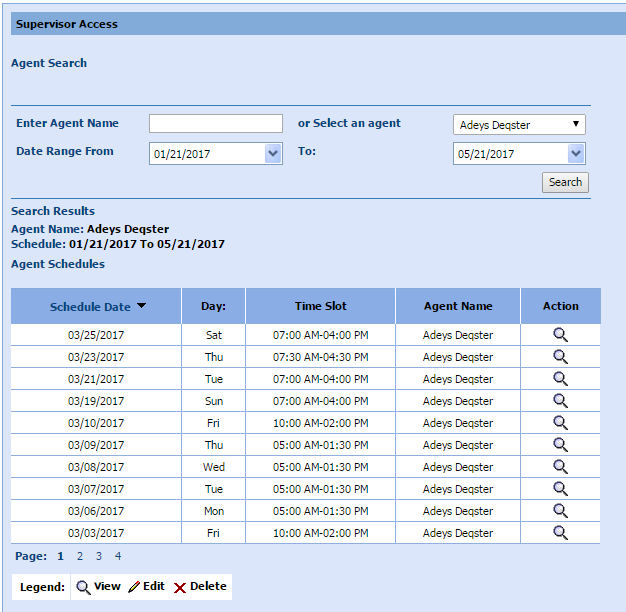
Select Anywhere > Agent Schedules in the left-navigation menu.
-
Enter an agent name in the Enter Agent Name text box, OR click Select an agent from the drop-down menu.
-
Select a Date Range Fromand To: with the calendar picker.
-
Select Search.
View Agent Schedule Details
-
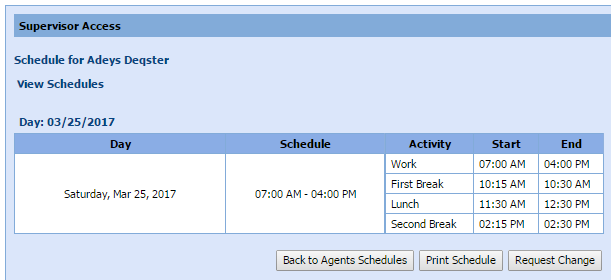
Select the magnifying lens icon in the Action column to view schedule details.
Enter Agent Exception
NOTE: The fields
displayed vary by the type of exception selected.
To enter an exception for an agent:
- Select Request Change.
NOTE: The
exception request can also be displayed by selecting Agent Exceptions in
the left-navigation menu, searching for the agent, and selecting Request
Change.
- Select the exception type from the drop-down
menu (Regular, Mid-day).
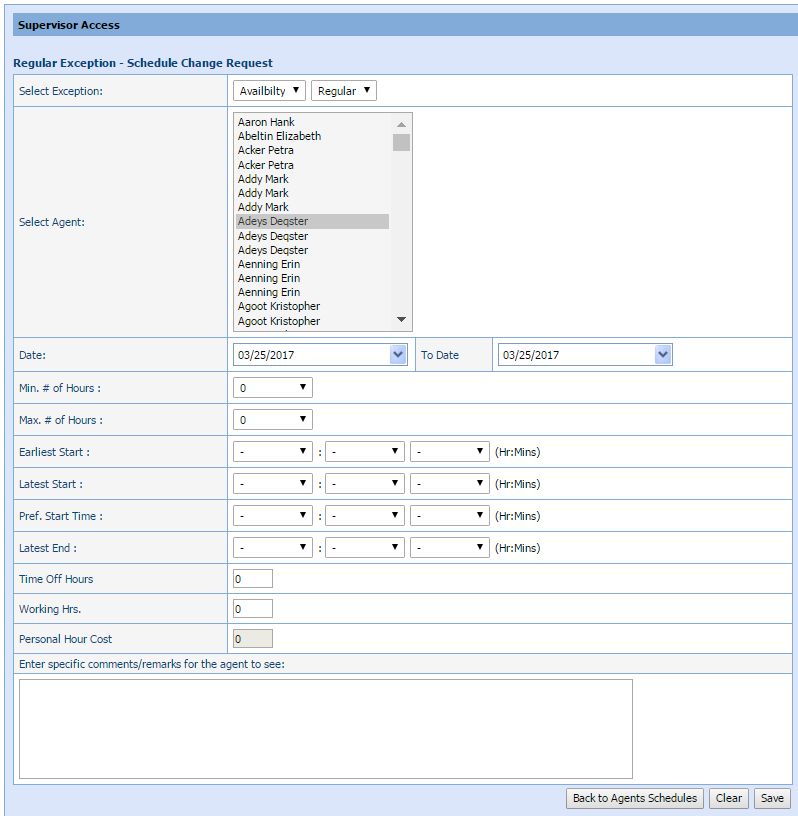
- Select the agent(s) where the exception applies.
- Select the Date and To Date the exception applies to from the calendar picker.
- Select the Start: time from the drop-down menu (Mid-day only).
- Select the End: time from the drop-down menu (Mid-day only).
- Select the Working (Y/N) status from the drop-down menu (Mid-day only).
- Select the Override Break and Lunch setting from the drop-down menu (Mid-day only).
- Select the Override Non Call: status from the drop-down menu (Mid-day only).
- Select the Min. # Hours from the drop-down menu (Regular only).
- Select the Max. # Hours from the drop-down menu (Regular only).
- Select the Earliest Start from the drop-down menu (Regular only).
- Select the Latest Start from the drop-down menu (Regular only).
- Select the Pref. Start Time from the drop-down menu (Regular only).
- Select the Latest End: (Regular only).
- Enter the Time Off Hours.
- Enter the Working Hrs.
- Enter the Personal Hours Cost.
- In the text box input Enter specific comments/remarks for the agent to see:.
- Select Save.